
Jammin' On-line
Your On-line Jammin' Settings
Just what do you need, the Technical Requirements for putting the One-line Jammin' Pieces Together?
2022 Update: If and when the world ever get a handle in the COVID-19 pandemic. Hooking up with fellow musicians virtually is still and always will be a great option.

12 August 2026
Technical Requirements
Find out just what is need to get things rolling.
Putting the On-line Jammin' Pieces Together?
- The minimum Computer specs needed for a successful experience.
- A hard-wired Internet Connection to your network or router. Wi-Fi won't cut it.
- Getting Audio, Instruments, and Voice into the computer.
- The Jamulus - Internet Jam Software that processes to audio sends it out to server and gets it all back. In the fewest milliseconds (ms) possible.
- Video Conferencing Software An optional video component so you can see each other during the jam. This is the area that has confused most people. You need to get this part right to have a good Jamulus experience.
Your Internet Connection
Are you getting the best connection to the Internet®.
- A Wired Internet Connection (No Wi-Fi). See the Internet section . If you have 10Mbs up and 1MB down you should be OK.
- A Wired Headphones - NOT Speakers (No Wi-Fi). See the Internet section . This is thee prevent echo and feedback issues. Only listen to the single from the server. This will allow you to keep better time.
- Always connect to the lowest ping time servers. Any, thing around or under 20ms is fantastic. Above 40 it gets gets harder to play in sync.
To thoroughly enjoy your jammin' session you naturally need an Internet® connected computer or laptop . A direct, hard-wired connection to your network or router will give you the best experience. Wi-Fi or a cell phone connection can work as well - but is not recommended. An internal or external web cam is using a video conferencing application. It's actually a good idea to verify what connection you are using (Ethernet or Wi-Fi ). On a Mac your Network settings are available in "System Preferences" in the "Network" section. You might think you are hard-wired, but actually, be using Wi-Fi . When browsing the Internet and most simple tasks on the computer, you won't tell the difference.
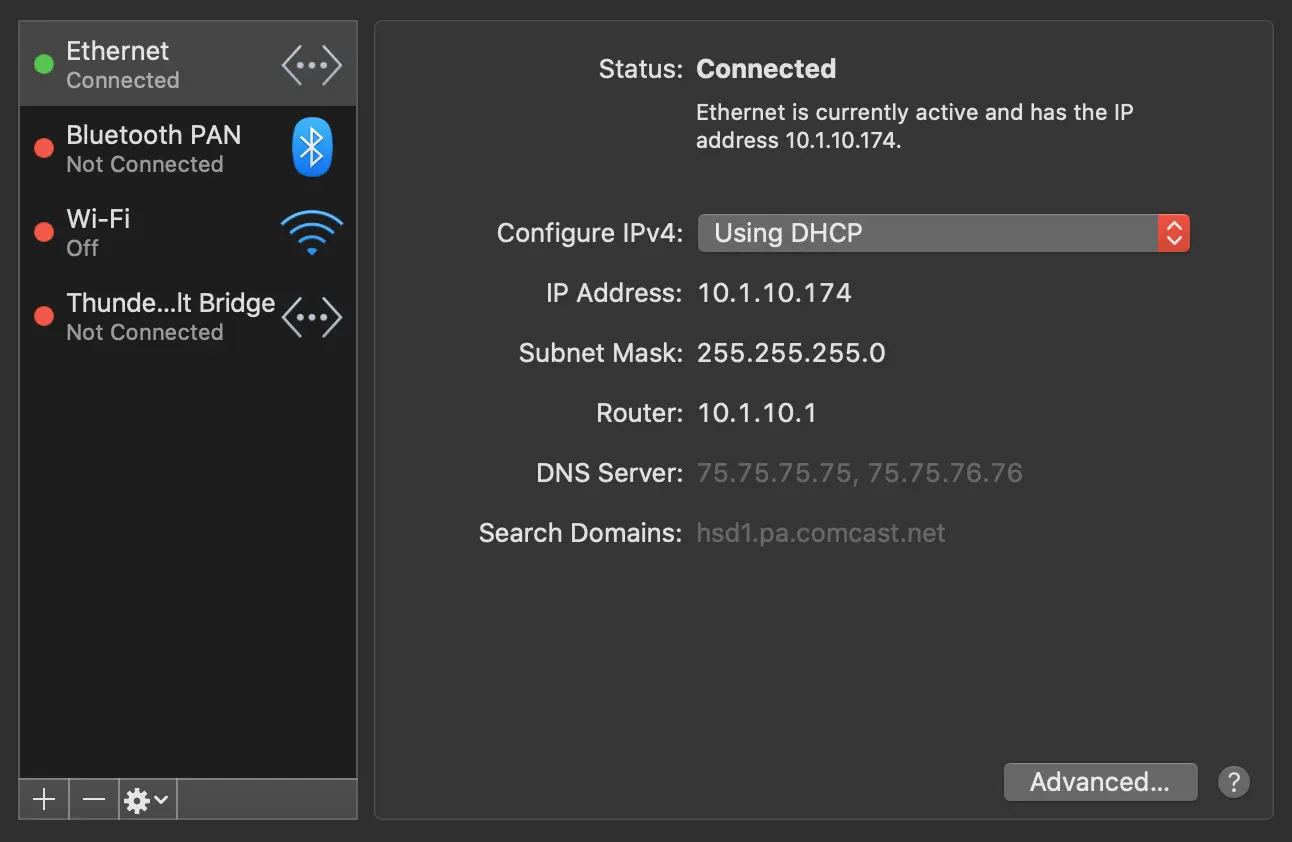
Example Network Settings for Mac OS X
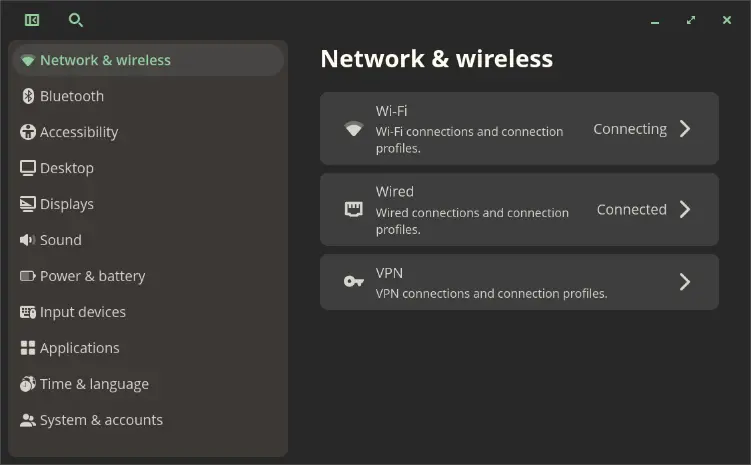
Example Network Settings for Linux, Pop!_OS/COSMIC Distribution
Checking Your Internet Connection Speed
The faster your connection, the better. You can check your actual download and upload connection speeds using SpeedTest , available as a web page and as mobile apps. Anything at or above 1mb down and up, and you will most likely be OK. SpeedTest will also give you your "ping", which is the time it takes to receive individual "packets of data. Fiber connections are typically better than cable (coaxial). However the fiber connection also has to be from the street to your in-home or business router to be 100% fiber.
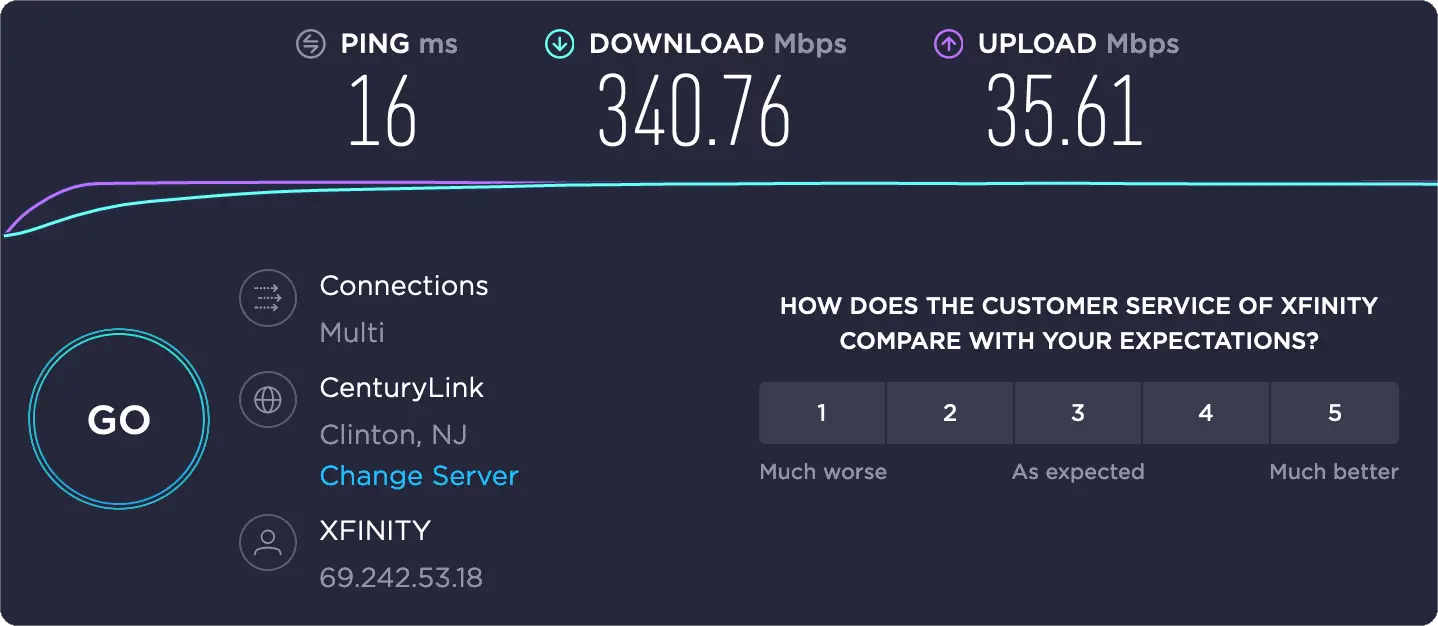
Here is my SpeedTest results on October 23, 2020 from Boyertown, PA USA to Clinton, NJ.
So if I select a Jamulus server in the NJ, NY, or the Northeast of USA, I would be in the acceptable ping(ms) range to have a successful jammin' experience. Turn off TimeMachine and back-up software that might kick in during the jam. Back-up software is a RAM hog when it kicks in to back up your computer. On a Mac, you can launch the Activity Monitor and see all the actively running processes. There is a lot more than you think about going on with your computer. Windows and Linux have the same tools and apps to see what is running. The "Less," no-essential tasks and applications running, the better.
You can also just try a Jam and see how it goes. If it goes well and there are not "glitches," then you were OK, at least for now. This page is all tips the things to look out for the help you have a successful Jammin; experience and not have to worry about the techy
part.
Here are some Jamulus Wiki Page resources pages for more information.
- Getting Started
- Hardware Setup
- Network Requirements • A detailed page on the effect of the audio settings in Jamulus and the impact on the required network bandwidth.
- Client Troubleshooting FAQ
Your Computer
Is your computer up to the task?
Your computer is processing your audio, sending it out and processing the returning combined audio from Jamulus. As well as anything else that you are running — such as Zoom is you are adding a visual video component. Every computer has a program or command line to list the processes, i.e., programs you are running. On the mac there is utility program from Apple called Activity Monitor. There is a lot more going on than you might think.
- A Computer running either Windows 10 or higher , MacOS X El Capitan (v10.11) or higher, or Linux .
Install Jamulus
Here are some Jamulus Wiki Page resources pages for more information.
Any laptop or desktop computer with a CPU, the central processor of 2.0GHz or higher and a minimum of 4MB RAM will most likely be sufficient – the faster the better. This information can be found on a Mac by clicking on the Apple icon in the upper left-hand corner of the top menu bar and selecting About This Mac. For Windows hit Start, type "system information" and you can get the information.
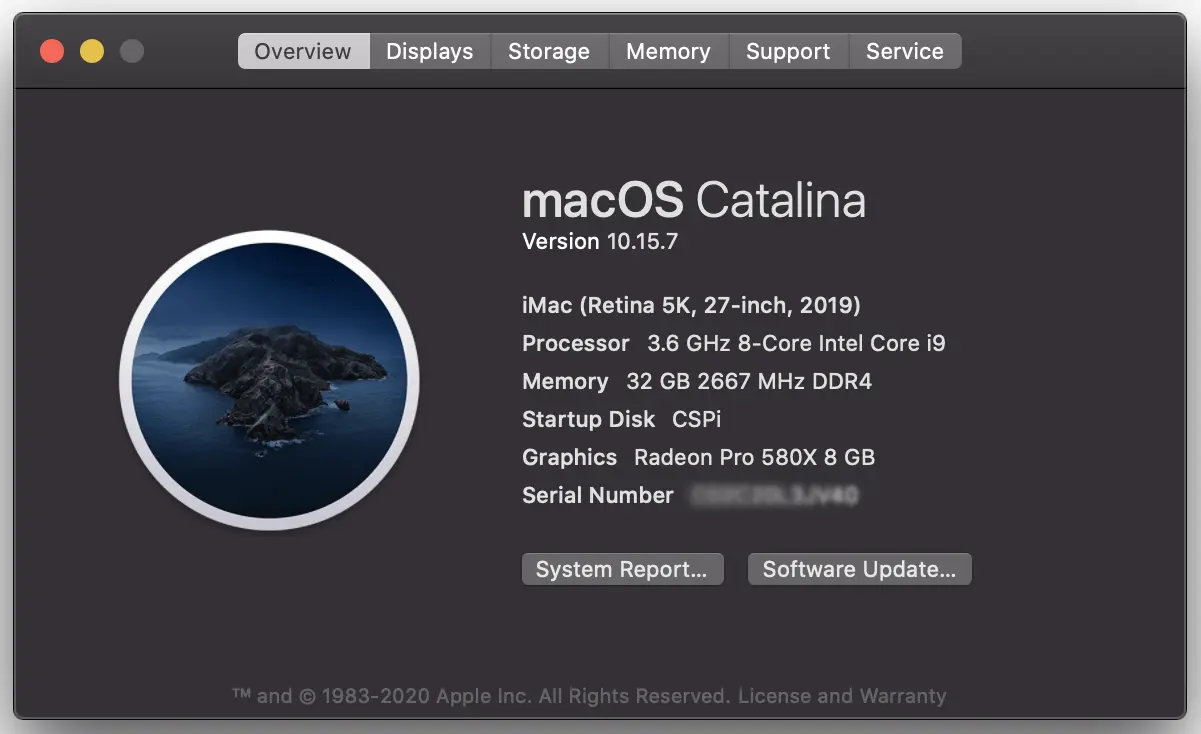
My About This Mac
• So I'm Good to go!
For Linux you probably already know how to get this information or know what you already have. If not here is a web page for 5 Ways to Check CPU Info in Linux of the various ways to get the information.
The lscpu command in Linux displays information about the CPU architecture.
lscpulscpu one the Linux built-in command's that will give you a lot of information on you CPU.
Or, get fancy and user neofetch for the information you need.
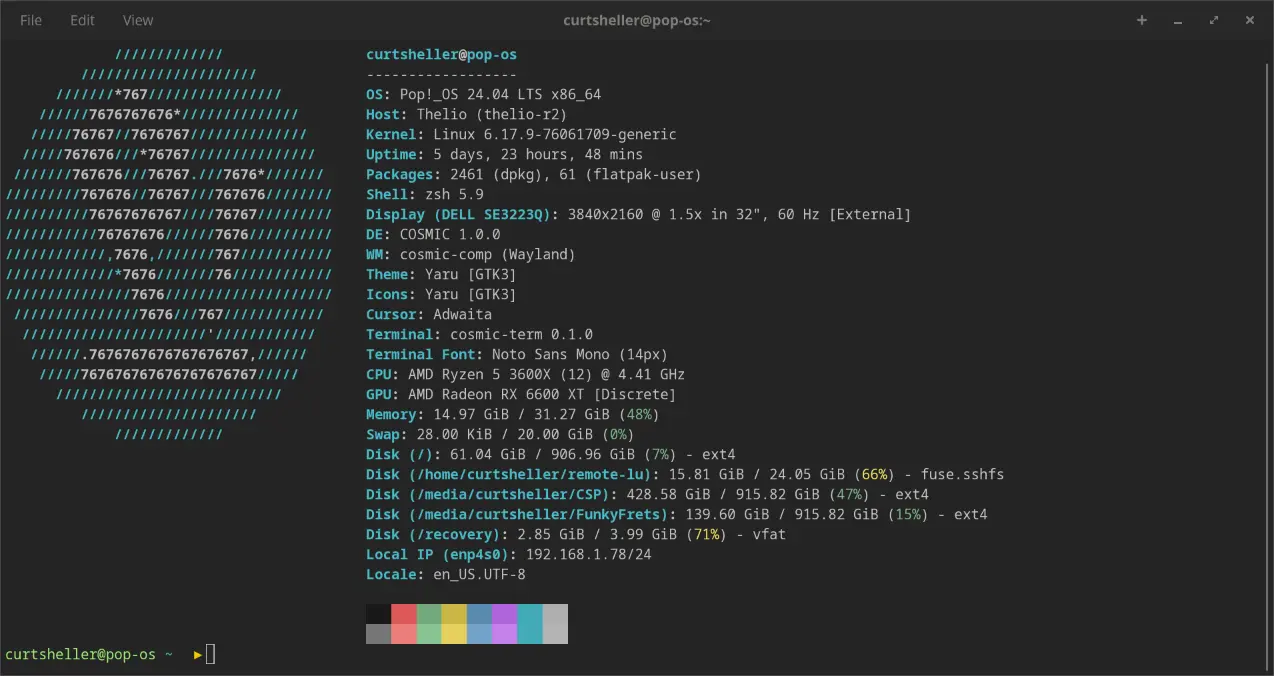
System76 Pop1_OS COSMIC — fastfetch sytem info
Only, Run What Is Needed for the Jam
Only, Run What Is Needed for the Jam. This is worth repeating — When it comes to processing audio and all the connections typically required to get the audio into your computer. The fewer things your computer has the handle, the better.
Quit ALL other applications and services that are NOT relevant to the Jam. Turn off Wi-Fi and disable all background tasks. On a Mac, these are all those little icons in the upper right-hand corner of the menu bar. If you don't need them for the Jam, quit them and restart them after the Jam. It helps is all the processing power of your computer is focused on the elements needed for the Jam, the audio, and video (if using video).
All operating systems have application or commands to list all the running processes and applications that are running. This is a good way to see what is happening on your computer. There is a lot more going one that you might think.
Your Audio Connection
Connection your voice and instruments to the computer.
Here are some Jamulus Wiki Page resources pages for more information.
- Getting Started
- Hardware Setup
- Network Requirements • A detailed page on the effect of the audio settings in Jamulus and the impact on the required network bandwidth.
- Client Troubleshooting FAQ
Analog Microphones (Mics) and Instruments
Most instruments, your guitars, basses, drums, keyboards are designed for live performance situations. And are analog instruments with 1/4in or XLR connections. These need to be connected to your computer to process the audio for the jam. An audio interface that connects to the computer using USB connections is required to get the audio into the computer for analog instruments. If you are singing and/or playing acoustically and not concerned with quality, then your built-in computer Mic might be enough. However, the built-in Mic is typically not the same as the quality of a Mic designed for music performance. A jam, is a musical performance.
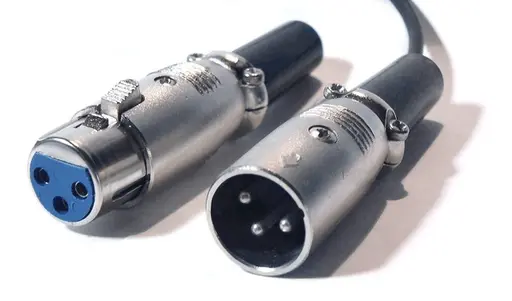
XLR Male and Female Connections
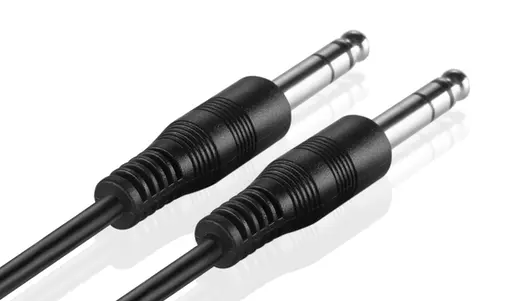
1/4in TS Connections a.k.a Phone (TS mono shown), TRS is Stereo
Checkout the WikipediA page: Audio and Video Interfaces and Connectors .
Digital Mics and Instruments
Digital instruments are designed to input directly into a computer via a USB connection. The three most common USB connection types are USB-A, USB-C, and 2.0 Micro-USB. Most computers will have USB-A connections at the minimum. USB-C is slowly become the more common connection.
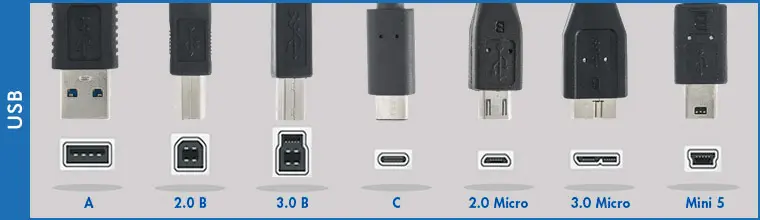
From CableWharehouse : USB Types
Headphones and Speakers
Headphones are a necessary investment for on-line jammin'. You should NOT listen to yourself "live", but only the playback through headphones. NO Speakers .
Audio Interface
Not to be confused with the Audio and Video Interfaces and Connectors (above) that dealt with the cables part of the interface. This section is the hardware boxes, the digital interfaces that turns the analog signals in to digital signals to send to the computer and computer's applications.
One of the most popular series of Audio Interfaces is the Focusrite Scarlett series. the Solo, 2i2, 4i4, 8i6, 18i8, 18i20, etc.
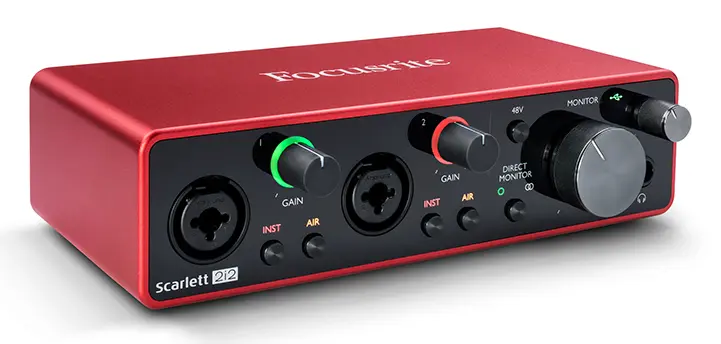
From Focusrite : Scarlett 2i2
Audio Routing / Virtual Audio Drivers
All these audio inputs need routing to get to the right places. On a Mac, there are two places that this happens, Sound Preferences and Audio MIDI Setup. Sound Preference is access via the System Preferences in the Apple Menu item in the top menu bar. Audio MIDI Setup is a separate Utility application. The Audio MIDI Setup app shows all the listed devices. Check that they are all set at 48,000 Hz. Set the bitrate 32-bit when available.
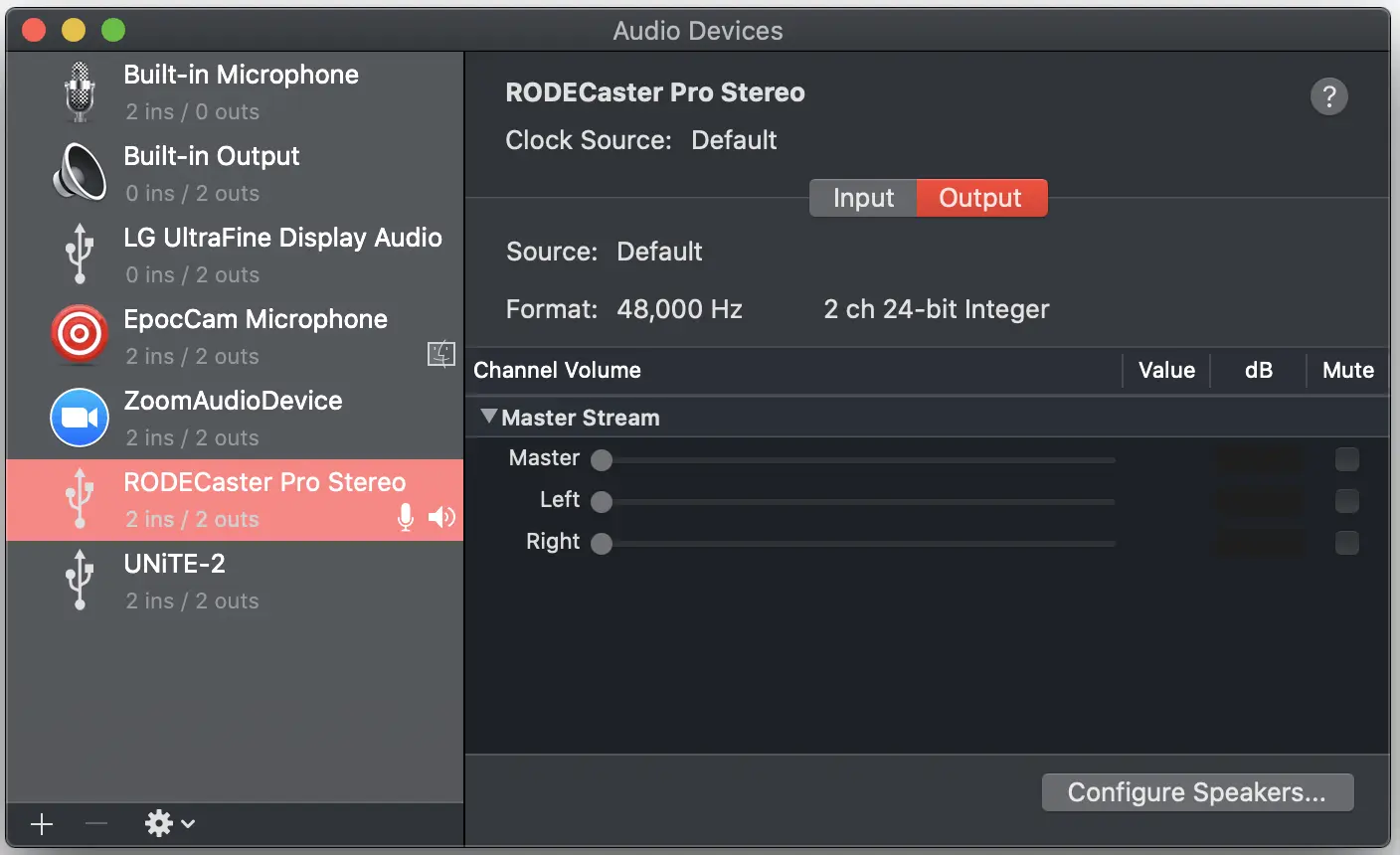
Mac: Audio MIDI Setup
There are several audio routing options. For Mac , virtual audio drivers include Soundflower (MacOS 10.10 Yosemite and earlier), BlackHole (MacOS 10.11 El Capitan and later, including Catalina), LoopBack, and others. LoopBack is the easiest to use for non-techies. For Windows , there's ASIO4ALL, JACK, VoiceMeeter, and others. Reaper (DAW) for Windows includes an audio routing solution (ReaRoute). For Linux Jack Audio Connection (JACK) is the way to go.
Jamulus, MacOS, Audio Interface, Rogue Amoeba Loopback, Zoom, and OBS
You'll be surprised how much the visual aspect of performing or jammin', live with fellow musicians affects the actual performance. The key is to get latency down to an acceptable level, so the visuals on-screen appear in sync with the playing. You can not get that with the audio from ZOOM, Skype, or video conferencing applications. You can by getting your audio from Jamulus. That is the key, and with visual feedback close enough, we don't try to reconcile that the visual and audio are not in sync.
Master Loopback (macOS only) for Live Streaming: Step-by-Step Guide
The best Mac alternative is JACK Audio Connection Kit , which is both free and Open Source. JACK Audio Connection Kit (or JACK) is a professional sound server API and pair of daemon implementations to provide real-time, low-latency connections for both audio and MIDI data between applications.
Handling Audio Between Applications - Mac
There are both commercial and free solutions for handling the audio on Mac , Windows , or : AlternateTo: Loopback . However, if on a Mac Loopback is well worth the cost. Loopback is the what I recommend.
Universal Audio Option - Mac/Windows/Linux
JACK Audio Connection Kit (JACK) • jackd is the JACK audio server daemon that allows JACK client programs to process and route audio and MIDI data in a synchronous, sample-accurate and low-latency manner. Originally written for the GNU/Linux operating system, it also runs on various Unix platforms , Mac OS X and MS Windows . JACK is needed on Linux.
Checklist
- Buy a USB audio interface to reduce latency.
- Set All Sample Rates to 48Hz in audio connections. This matches Jamulus
- Direct Monitoring - off. Mute your self in Jamulus. Use headphones NOT speakers
You want to monitor the audio coming back from the Jamulus Server NOT your Jamulus Client.
As you can see, audio is the one area that will give you the most frustration in setting things up. And an additional issue is to remember what worked. That is one of the big reasons for creating these pages. So take note - not music notes - use the write it down kind of notes to keep track of what is working so you can reproduce it each time you need it. This is especially true if you computer is not dedicated to one task.
Jamulus Settings
Getting the most out of Jamulus session.
If you've gotten this far you're ready to go and connect to fellow ukulele players around the world. The Audio connections tend to be the most confusing, hence the Audio section was long. This next part is getting Jamulus to use those connections.
As a review:
- A computer running either Windows 10 , MacOS X El Capitan (v10.11) or higher, or Linux
- A Wired Internet Connection (No Wi-Fi ). See the Internet section . If you have 10Mbs up and 1MB down you should be OK.
- A Wired Headphones - NOT Speakers (No Wi-Fi or Bluetooth). See the Internet section . This is thee prevent echo and feedback issues. Only listen to the single from the server. This will allow you to keep better time.
- Always connect to the lowest ping time servers.
Suggested Jamulus Settings
- Device: Unless you know your other options. Use your sound card for In and Out. See the Funky Frets Serve section below for more information on selecting your device.
- Audio Channel to Mono.
- Audio Quality to High.
- Buffer to 128.
- Enable Small Network Buffers to High.
- Jitter Buffer to Auto.
Checkout this guide from the Jamulus World Jam: Idiots Guide to Jamulus App to get going.
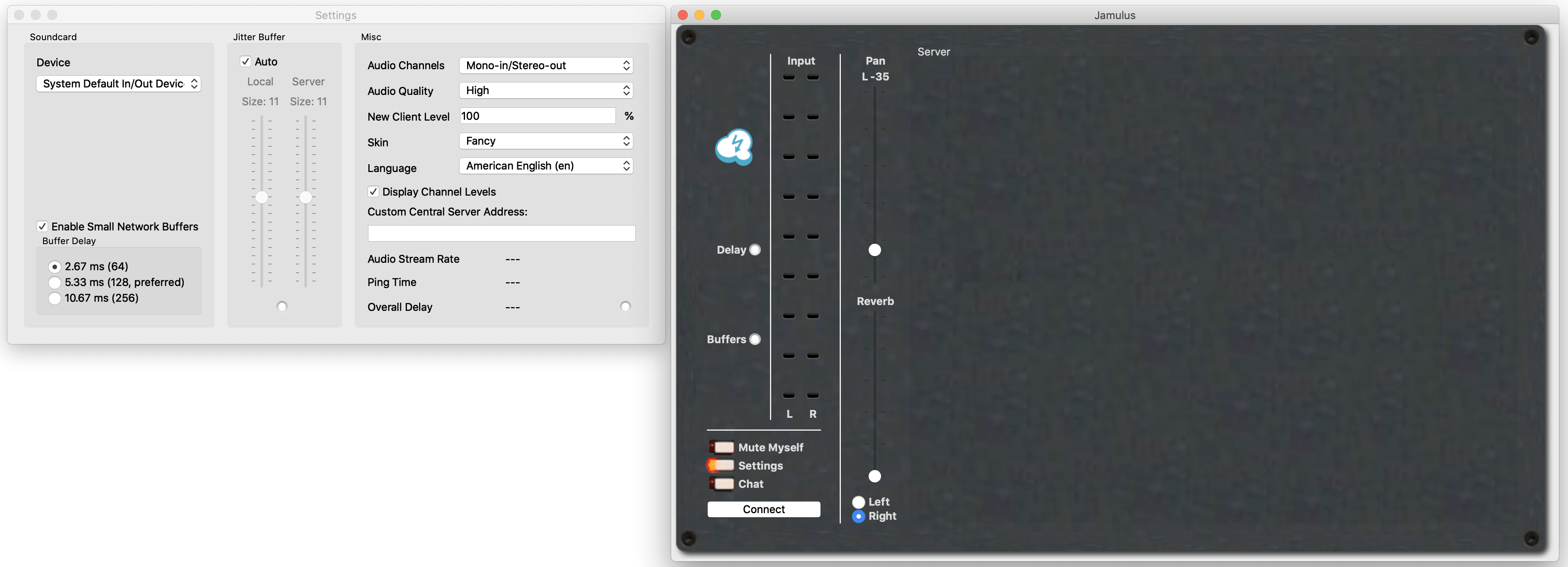
The "Settings" & "Mixer" (Jamulus) Jamulus Client Windows on Mac. Click on "Connect" to select a Jamulus server.
Using Video Conferencing Software
Getting the most out of Jamulus session using a video conferencing software solution. This section's focus is on ZOOM but the concepts are the same for other video conferencing software.
Using ZOOM, Jitsi or any video conferencing software like that will give you the visual experience of playing live with other musicians and actually seeing them, albeit small but still in-person. Just don't use the video conferencing software's audio. Jamulus and all the previous audio connection work you did on this page will handle that.
Use the Latest Version
Upgrade to run the latest version of ZOOM. You always want to take advantage of the latest features in ZOOM. As of October 27, 2020 on my Mac the latest version is 5.4.0 (58631.1025). On a Mac, you can click on the Zoom.us menu item in the top menu bar and select "Check for Updates...". Zoom will either update or tell you that you are running the latest version. For Windows and Linux, poke around the menus. It's in there somewhere.
Turn OFF Audio in ZOOM?
Jamulus is handling the audio. The only audio you want to here is the mixed audio returned from the Jamulus server. For everyone on Jamulus you can chat using your live Jamulus connection. If you are using Loopback with Jamulus then set the Microphone to that in ZOOM's Audio Settings for the Microphone. The Speaker setting in ZOOM should be set to your headphones.
Know Your Mic Status?
Always keep an eye on your Mic status. "Is it ON? Is it OFF?" You can avoid some embarrassing moments by being aware of your Mic and video status.
Chat
Don't forget you can always use the "Chat" feature in ZOOM and Jamulus. ZOOM's chat access is available at the bottom of the main window. You can send a message to ALL or an individual person.
